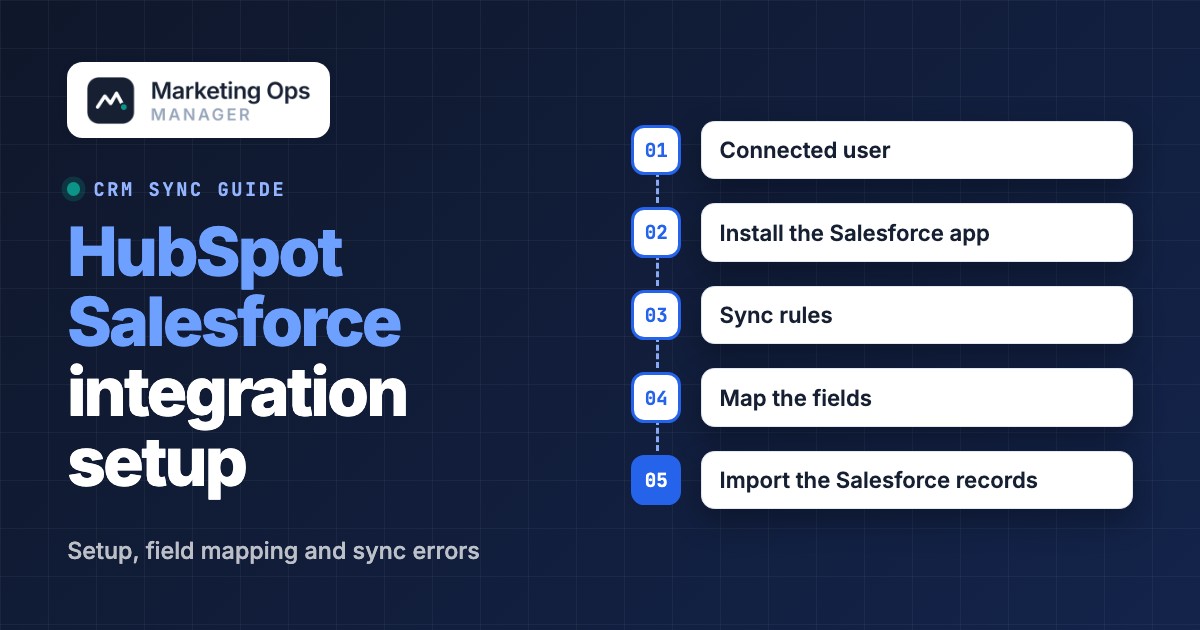
The HubSpot Salesforce integration is HubSpot's native connector that keeps contacts, companies, deals, tickets and activities in step between the two systems. It syncs both ways, checks both sides for changes about every 15 minutes, and needs a HubSpot Professional or Enterprise subscription plus a Salesforce edition with API access. The decisions you make around the install, such as which records sync, which system wins a conflict and who owns a lead, decide whether it runs quietly or fills your Sync Health tab with errors.
This guide follows the order of those decisions. It covers what you need before you connect, a plan to settle before you click, the install steps, sync rules and field mapping, the API call budget, a table of every error family HubSpot documents with the first fix, and a short routine for the weeks after launch. The facts come from HubSpot's Knowledge Base pages (the install page was last updated on October 16, 2026) and Salesforce's developer documentation on API limits.
If you're still deciding between the two CRMs, our comparison of HubSpot vs Salesforce sets their prices, tier limits and routing side by side.
- You need a HubSpot Professional or Enterprise subscription, a Salesforce edition with API access (or Professional), and a Salesforce system administrator to connect HubSpot to Salesforce.
- The integration syncs about every 15 minutes, and records don't sync automatically after install: they sync when triggered or when you import them.
- A single contact sync can use up to four Salesforce API calls, so a big import can eat most of a day's allocation.
- Every mapped field has a sync rule that decides which system wins a conflict. Choose these before you install, not after the first overwrite.
- Most sync errors fall into eight families, and the Sync Health tab in HubSpot shows each one with the affected records.
What does the HubSpot Salesforce integration sync?#
The integration syncs five groups of data between HubSpot and Salesforce: contacts, companies, deals, tickets and activities. HubSpot's Knowledge Base maps them to Salesforce objects as shown below. Contacts always sync once the integration is on, and the other objects are switched on one by one in the Data sync tab.
| HubSpot object | Salesforce object | Notes |
|---|---|---|
| Contacts | Leads and contacts | Always on and can't be turned off. HubSpot has one contact object, so a Salesforce lead and a Salesforce contact both sync to a HubSpot contact. |
| Companies | Accounts | Optional. Switch on the object before you map company fields. |
| Deals | Opportunities | Optional. Opportunity stage must exist in the HubSpot deal pipeline. |
| Tickets | Cases | Optional. |
| Activities | Tasks | Form submissions, email events, meetings, calls and notes sync to Salesforce as tasks. See the activity sync note in the pitfalls section. |
| Custom objects | Custom objects | Optional, and listed by HubSpot as a feature you can switch on. |
Two details trip people up on day one. First, Salesforce keeps unqualified prospects as leads and qualified ones as contacts attached to an account, while HubSpot keeps every person as a contact and tracks progress with the lifecycle stage property. Second, the connector can create either leads or contacts in Salesforce from a HubSpot contact, not both at the same time. You pick one in the contact sync rules, and that choice affects duplicates later.
The old route is on its way out. HubSpot says its legacy managed package, which contains the legacy Visualforce module, is being deprecated, and recommends uninstalling it and using HubSpot Embed, the window that shows HubSpot timeline activity, property history, workflows and sequences on Salesforce page layouts.
What do you need before you connect HubSpot and Salesforce?#
You need a qualifying HubSpot subscription, a Salesforce edition with API access, a Salesforce system administrator and a connected user with the right profile permissions. HubSpot's install page lists Professional and Enterprise tiers of Marketing Hub, Sales Hub, Service Hub, Data Hub and Content Hub, plus Smart CRM, so a free or Starter-only account doesn't qualify. The table shows what each requirement is and what breaks if you skip it.
| Requirement | What HubSpot says | Needed for |
|---|---|---|
| HubSpot subscription | Professional or Enterprise in a qualifying hub or Smart CRM, plus Account Access permissions in HubSpot | Installing the Salesforce app |
| Salesforce edition | An edition with API access, or Professional. Salesforce Government Cloud works. Group Edition isn't supported | Connecting at all |
| Salesforce user | A system administrator | Installing and connecting |
| API Enabled | Profile permission on the connected user | Listed by HubSpot as required |
| View Setup and Configuration | Profile permission, turned on | Listed by HubSpot as required |
| Modify All | On every object you want to sync: accounts, campaigns, contacts, leads, opportunities | Syncing those objects |
| Download AppExchange Packages | Profile permission | Listed by HubSpot as required |
| Modify Metadata | Profile permission | Viewing HubSpot Embed on lead or contact records and syncing deals |
| Customize Application | Profile permission | Installing HubSpot Embed and its automatic updates |
| Task Type field | Set to Visible in the user profile | Listed by HubSpot as required |
Then there are the limits that don't fit a permission list.
- One Salesforce instance per HubSpot account. To connect several HubSpot accounts to one Salesforce org, you install and set up the integration in each HubSpot account.
- Login IP restrictions can block the connection. HubSpot uses dynamic IP addresses, so you can't allowlist them. If Salesforce has the Enforce IP Restrictions on Every Request setting selected, the integration can't connect. HubSpot recommends configuring a network IP range in Salesforce instead.
- Records don't sync on their own after install. You import Salesforce records, or let them sync gradually as sync triggers fire.
- Smart Transfer and the integration don't mix. Smart Transfer is HubSpot's one-time migration tool. If you used it before, turn off all Smart Transfer sync connections before you turn on the integration, because the two use different unique identifiers and running both creates duplicates.
How do you plan the HubSpot Salesforce sync before you click anything?#
Decide which records sync, which system owns each field and who assigns owners before you install, because the first sync of a field uses the current Salesforce value as its baseline and can overwrite a newer HubSpot value. HubSpot's own planning guide makes the same point: plan first, then connect. The table turns that guide into a worksheet you can fill in with your sales ops counterpart. If you're still choosing where leads are scored and assigned, our lead management software comparison shows which plans include scoring and routing.
| Decision | Options | What to write down |
|---|---|---|
| Goal | Send qualified leads to Salesforce, show Salesforce revenue in HubSpot, show HubSpot activity to sales | One sentence per goal. Each goal justifies an object or field. |
| Which HubSpot contacts sync | All contacts, or only those in an inclusion segment | The segment definition, for example contacts above a lead score threshold |
| Which Salesforce records sync to HubSpot | All, or limited with Salesforce selective sync | Which objects, and whether opportunities feed revenue reporting |
| Connected user | A dedicated Salesforce user with the required permissions | The user, its owner and a rule that a replacement needs equal or higher permissions |
| Lead or contact in Salesforce | HubSpot creates leads or contacts, not both | One answer, agreed with sales ops |
| Source of truth per field | Salesforce, HubSpot or whichever changed last | One line per mapped field with its sync rule |
| Record owners | Assign in Salesforce, in HubSpot, or in both with workflows | Where assignment logic lives. Prefer one place. |
| Activity sync | Timeline sync (one way) or Activity sync (two way) | Which activity types sales needs to see |
One more planning note: Salesforce campaigns have no direct equivalent in HubSpot. HubSpot has a campaigns tool, but it serves a different purpose, so don't promise marketing that Salesforce campaign membership will appear as HubSpot campaigns.
How do you connect HubSpot and Salesforce?#
The connection takes six steps, and the last three decide what actually syncs, because records don't move on their own after the install. The steps below follow HubSpot's install and import pages. Menu names can change, so check them against your own account.
Create or choose the connected user
The connected user, also called the integration user, is the Salesforce user HubSpot acts as. Whatever that user can't see, HubSpot can't sync, so a user without access to the lead object means leads never reach HubSpot. Give it the permissions from the requirements table.
Install the Salesforce app from the HubSpot Marketplace
In HubSpot, open the Marketplace icon in the top navigation, choose HubSpot Marketplace, search for the Salesforce app and click Install. For a sandbox, select the checkbox that says this will connect to a sandbox, then click Install again.
Log in to Salesforce
A pop-up asks for the Salesforce credentials of the connected user. After you log in, you land back in HubSpot.
Set the contact sync rules
Open Settings, then Integrations, then Connected Apps, choose Salesforce and open the Data sync tab. Under Contacts, Sync rules, choose what happens when a Salesforce lead or contact changes, whether HubSpot creates leads or contacts in Salesforce, what happens on delete, whether opportunity stage moves the lifecycle stage, and the inclusion segment.
Map the fields and switch on the objects
For each object, open Property mappings, check the standard mappings and add custom ones with a sync rule per field. Then switch on the object (companies, deals, tickets). Contacts are already on.
Import the Salesforce records
In HubSpot, go to Contacts, choose Import, then Objects from an app, then Salesforce records, and pick the object. Only the email address comes over at first for leads and contacts. In a HubSpot account with no inclusion segment, or for contacts inside one, a sync then fills in the remaining field values. Large imports can take several hours because HubSpot paces its use of your Salesforce API calls.
If the connected user ever has to change, HubSpot allows it from the Actions menu on the Salesforce integration page. The new user must have equal or greater permissions and belong to the same production org.
How do sync rules and field mapping work between HubSpot and Salesforce?#
Each mapped field carries one sync rule that decides which system wins when the two values differ, and the HubSpot property type has to match the Salesforce field type. HubSpot's field mapping page lists four rules for a mapping, and the choice you make for each field is the most important setting in the whole integration.
| Sync rule | What happens | Use it when |
|---|---|---|
| Prefer Salesforce unless blank | HubSpot passes a value only if Salesforce is empty. Otherwise the Salesforce value overwrites HubSpot. | Sales owns the field but marketing can seed it |
| Always use Salesforce | HubSpot never passes data to Salesforce. A Salesforce value, or its deletion, always overwrites HubSpot. | Sales stage, revenue and other sales-owned data |
| Two-way | The most recent value overwrites the other. Deleting in one system deletes in the other. | Fields both teams edit, such as job title |
| Don't sync | Nothing passes between the systems. | Standard mappings you can't delete but don't want |
HubSpot's separate planning guide also names HubSpot-first versions of these rules, so the exact options you see can differ by object and mapping. Read the list in your own account before you decide. Whatever the labels, write down the owner of each field in the worksheet from the planning section.
Field types have to be compatible, otherwise the mapping throws a type mismatch error. HubSpot documents these pairs.
| HubSpot property type | Salesforce field type |
|---|---|
| Dropdown select or radio select | Picklist, reference |
| Multiple checkboxes | Multipicklist |
| Single checkbox | Boolean |
| Number | Double or integer |
| Single-line text | String, textarea |
| Multi-line text | Textarea |
| Date picker | Date, datetime |
These mapping rules cause the most surprises in practice, according to HubSpot's documentation.
- Existing values don't sync backward. A new mapping doesn't retroactively sync values that already exist. Resync records, bulk resync or run a Salesforce import afterward.
- The first sync can overwrite a newer HubSpot value. If a record has no sync history for that field, the first sync uses the current Salesforce value as the baseline.
- There's a limit of 500 field mappings per object.
- Don't map one HubSpot property to several Salesforce fields. Duplicate mappings can overwrite values or create sync loops, and the warning can persist even if one of the mappings is set to Don't sync.
- Don't map the ID fields. Mapping Salesforce Lead ID or Contact ID is a documented cause of the unknown error "Duplicate id specified". The integration manages those values itself.
- Owner syncs two-way only. The owner value has to match exactly. Only HubSpot owners whose name and email match an active Salesforce user sync to Salesforce, and otherwise the Owner ID resets to the last Salesforce value.
- Reference fields arrive as 18-digit IDs, not labels. To use them for segmentation, map the field to a HubSpot dropdown property and type the labels in by hand. That needs upkeep whenever Salesforce adds a value.
- Only custom mappings can be deleted. For a standard mapping, set the rule to Don't sync.
How often does HubSpot sync with Salesforce?#
HubSpot checks both systems for new or updated information approximately every 15 minutes and starts a sync if the configuration says one is needed. Events can start a sync sooner. HubSpot's documentation lists the triggers below, and each depends on your settings.
- A contact submits a form.
- A marketing or sales email is sent to, opened by or clicked by a contact, if sync is turned on for that activity.
- A meeting is scheduled, a call is made, a note or task is created, or sales content is viewed, if sync is turned on for that activity.
- A contact, company or deal property changes in HubSpot, subject to the mapping's rule.
- A lead, contact, account or opportunity value changes in Salesforce, subject to the mapping's rule.
- A new Salesforce lead or contact, or a new HubSpot contact, is created, subject to your settings.
- A contact is added to an active Salesforce campaign through a HubSpot form.
- Ownership changes in either system, or a lifecycle stage transition happens with automatic transitions on.
When a record doesn't sync on its own, you can resync it by hand. On a contact, company or deal record, find the Salesforce sync card and choose Actions, then Resync. For a whole segment, a Marketing Hub Professional or Enterprise subscription adds Resync segment with Salesforce under the segment's Actions menu. Confirm the record meets the inclusion segment criteria first, because a record outside the segment won't sync.
How many Salesforce API calls does the HubSpot sync use?#
A single contact sync can use up to four Salesforce API calls, according to HubSpot, and Salesforce gives an Enterprise Edition org 100,000 calls per 24 hours plus 1,000 per license. HubSpot says the four-call figure can vary. Treat it as a worst case when you budget.
Salesforce's developer documentation gives the allocation formula for Enterprise Edition and for Professional Edition with API access enabled: 100,000 plus the number of licenses times the calls per license type, plus any purchased API add-ons. For Salesforce user licenses that's 1,000 calls each. Its own example is an Enterprise org with 15 Salesforce licenses and a limit of 115,000 requests. Unlimited and Performance Edition orgs get 5,000 calls per Salesforce license. The limit covers the whole org, so every connected app and managed package spends from the same pool.
The table applies the worst case of four calls per record to that 115,000 example. The arithmetic is ours, not HubSpot's or Salesforce's, so use it for planning, not as a guarantee.
| Scenario | Records | Worst-case calls at 4 per record | Share of 115,000 |
|---|---|---|---|
| Daily change volume | 1,000 | 4,000 | 3.5% |
| Large resync | 5,000 | 20,000 | 17.4% |
| Full import of a big database | 25,000 | 100,000 | 87.0% |
Segment resyncs have their own rule: HubSpot advises having at least the segment size times three calls available in Salesforce before you start one.
You control the share HubSpot may use. On the Sync Health tab of the Data sync page, the API call use section shows the calls used in the last 24 hours, a Limited by Salesforce number and an Allocated to HubSpot field you can edit. HubSpot's guidance is to set it from your Salesforce limit and the calls your other tools already use. Salesforce can also email a designated user when API use passes a percentage you choose, under API Usage Notifications in Setup.
Which sync errors will you see and how do you fix them?#
HubSpot groups Salesforce sync errors into eight families: associations, custom code, duplicates, permissions, picklists, property mappings, property values and a catch-all for unknown errors. Each family has a typical cause and a first fix. Find them under Settings, Integrations, Connected Apps, Salesforce, Data sync, Sync Health, where each error type appears as a card with the number of errors and affected records.
| Error family | Example errors | Typical cause | First fix |
|---|---|---|---|
| Associations | Association limit reached, Waiting for account to sync, Association cardinality mismatch | A record links to an account that hasn't synced, hits HubSpot's association limit, or an activity has several contacts | Import Salesforce accounts first. Remove extra associations. Keep one contact per synced activity. |
| Custom code | Salesforce automation, Salesforce flow, custom field validation rule, missing contact ID | A flow, automation or validation rule in Salesforce rejects the write | Ask the Salesforce admin to fix it in Salesforce |
| Duplicates | Email already in use, Salesforce duplicate rule | The email exists on another HubSpot contact, or a Salesforce matching rule blocks the record | Remove the email from the existing HubSpot contact. Have an admin review matching rules, then merge or adjust. |
| Permissions | Insufficient access, Salesforce field permission, Insufficient Salesforce access | The connected user can't read or edit the field or object | Give the connected user Read and Edit on the field and check its profile |
| Picklists | Mismatched options, Restricted picklist value, Inactive Salesforce owner, Inactive opportunity stage, Missing or invalid opportunity stage, Default sales process unavailable | A value in one system isn't a valid option in the other | Match the internal or API names of the options. Reassign inactive owners. Check record types. |
| Property mappings | Type mismatch, Missing Salesforce ID, Invalid Salesforce ID | The property and field types are incompatible, or a reference field got a non-ID value | Pair compatible types. Check the Salesforce validation rule. |
| Property values | String too long, Invalid email, Missing required country, Owner assignment, Restricted unique value, Missing required value | The value itself is invalid for the target system | Fix the individual record, or raise the field limit in Salesforce |
| Other or unknown | Duplicate id specified | Often a custom mapping on Lead ID or Contact ID | Remove the ID mapping. Contact HubSpot Support for anything else. |
A few details from HubSpot's error page make the first fixes concrete:
- The Restricted picklist value error appears when Salesforce has Restrict picklist to the values defined in the value set turned on for the field. HubSpot recommends turning it off so any value can sync from HubSpot, or making sure the value exists in the picklist.
- The Default sales process unavailable error usually means Salesforce opportunities have no Record Type. If you've turned Record Types on but aren't using them, HubSpot suggests working with Salesforce to deactivate them or create a new one.
- Task fields have fixed HubSpot options: priority is High, Medium, Low or None, and status is Not Started, In Progress, Waiting, Completed or Deferred. You can't add options in HubSpot, so change the Salesforce picklist to match.
- The Owner assignment error usually means a HubSpot activity syncing to Salesforce is trying to assign a task to a queue owner.
The routine for each card is the same. Click the error type, open the details panel, and use Actions, then Create a temporary view of HubSpot records to get a filtered list of affected records. Fix the cause, tick the resolved errors and click Resync. You can export the list as a CSV, and Manage notifications lets you choose Instantly, Daily or Weekly alerts. A bulk resync handles 100 Salesforce errors at a time. For more than 100, import the records from Salesforce or update a mapped property.
Which settings create duplicate or missing records?#
Duplicates and missing records usually come from a short list of settings: creating leads without accounts, a second HubSpot account on the same org, Smart Transfer left on, lifecycle stage rules and records that sit outside the inclusion segment. Check each one against your configuration.
- Two HubSpot accounts on one Salesforce org. HubSpot recommends choosing Don't automatically create HubSpot contacts for the Creating contacts in HubSpot setting. With the other options, a lead created by one HubSpot account can create a contact in the other.
- Smart Transfer still on. Turn off all Smart Transfer sync connections before you switch on the integration, or you get duplicates in both systems.
- Lifecycle stage surprises. Moving a HubSpot contact from Lead to Opportunity requires that the Salesforce lead is already syncing to a HubSpot contact, converted to a Salesforce contact and linked to an opportunity through contact roles. Custom relationship fields and opportunities without contact roles don't trigger the change. The setting also never moves a contact backward, so a Customer stays a Customer, and a HubSpot lifecycle stage never converts a Salesforce lead.
- Records outside the inclusion segment. A new Salesforce lead can create a contact in HubSpot even if it's outside the inclusion segment, but later updates from either side won't sync.
- Deletes are one-directional. Deleting a HubSpot contact doesn't delete anything in Salesforce.
- One person per email. Independent Salesforce guidance from Salesforce Ben (a 2023 admin guide) says HubSpot allows one record per email address, so if several Salesforce leads or contacts share an email, the most recently updated one syncs. Treat that as a data-cleanup task before you connect.
- Activity details. HubSpot's timeline sync creates a Salesforce task for each marketing email open or click, so repeat opens create several tasks. Only marketing email events within 30 days of the contact's first sync, and form submissions within one year, sync. Emails logged through Einstein Activity Capture don't sync to HubSpot, and a HubSpot activity assigned to an inactive owner fails with a sync error.
Should you use the native sync or a third-party integration tool?#
Use the native sync when its objects, sync rules and one-instance model fit your setup, and consider an integration platform when you need logic, volumes or environments the connector can't express. The native connector is the default because HubSpot builds and supports it and its settings cover the common cases. It has limits you can plan around, and none of the options removes the Salesforce API pool.
| Option | Best for | Limits | Cost |
|---|---|---|---|
| Native HubSpot connector | Standard marketing-to-sales handoffs with objects, rules and ownership that fit its settings | One Salesforce instance per HubSpot account, the sync rules and triggers described above, a daily API pool shared with every other tool | Needs a Professional or Enterprise subscription |
 Zapier Zapier | Moderate volumes where marketing ops wants to own a trigger, a filter and a few actions | Per-task pricing makes large record syncs expensive | $19.99 per month for 750 tasks on Professional, as checked on October 13, 2026 |
 Workato Workato | Business-critical syncs between HubSpot, Salesforce and a warehouse that need versioning, environments and access control | Needs IT and marketing ops to share ownership | Quote only |
| Custom API integration | Unusual data models or logic nothing else expresses | Engineering time to build and maintain | Developer time |
Whichever option you pick, check what it does to your Salesforce limit. Salesforce's documentation says API calls from installed managed packages count against the org limit, and the limit applies to the aggregate of all API calls to the org, not per user. A second sync tool is a second spender from the same 24-hour pool.
How do you keep the HubSpot Salesforce sync healthy after launch?#
Open Sync Health weekly, clear new errors, watch API use and test the path a lead takes from form to Salesforce owner on a schedule. The sync tells you what it refused to move. It can't tell you about the things upstream of it: a form field renamed, a landing page that lost its tracking, a lead that sat unrouted for two days. That second half belongs to the handoff checks below, which tie back to the tracking work in our guide to UTM parameters, where we cover how campaign values reach a CRM through hidden fields.
- Open Sync Health and clear every new error card, or assign it to an owner
- Turn on error notifications (Instantly or Daily) and send them to a shared inbox, not one person
- Compare API calls used in the last 24 hours with the number allocated to HubSpot
- After any Salesforce picklist change, use Refresh on the matching mapping so HubSpot gets the new options
- Update the labels of any 18-digit reference field values that changed in Salesforce
- Confirm that every record owner is an active user in both systems
- Submit a test form and follow the contact through to its Salesforce lead or contact, owner and task
- Ask the Salesforce admin to tell marketing ops before they change a flow, validation rule or duplicate rule
- Export the field mappings as a CSV after each change and keep the file with the worksheet
- Before replacing the connected user, check that the new user has equal or higher permissions
Several of these checks are manual, and most teams skip them after the first month. For the background on the function that owns them, see our overview of what marketing operations is. If you're comparing the systems around the CRM, our roundup of marketing operations software covers them, and the explainer on the Model Context Protocol shows how an AI assistant can help with the checks.
 The Marketing Ops Manager checks the steps around the sync. It monitors landing pages, tracking, forms, CRM connections and sales handoffs on a schedule and opens an incident with evidence when a step fails. It connects to HubSpot, among other tools, and works in Claude, ChatGPT or any MCP client. It's read-only by default and every write needs human approval. Signup is invite-only right now.
FAQ#
How often does HubSpot sync with Salesforce?
About every 15 minutes. That's how often HubSpot looks at both systems and starts a sync if your settings call for one. A form submission, an owner change or a newly created record can start one earlier, while a change to a Salesforce formula field won't.
Which HubSpot plan do I need for the Salesforce integration?
HubSpot's install page lists Professional and Enterprise subscriptions of Marketing Hub, Sales Hub, Service Hub, Data Hub and Content Hub, plus Smart CRM. On the Salesforce side you need an edition with API access, or Professional, and a system administrator. Group Edition isn't supported.
Is HubSpot replacing Salesforce?
HubSpot isn't replacing Salesforce in this setup, because the integration assumes you run both. It's built for ongoing two-way syncing. If you only want to move Salesforce data into HubSpot once, HubSpot points you to Smart Transfer instead, and warns against running Smart Transfer and the integration together because it creates duplicates.
Can I connect more than one Salesforce org to a HubSpot account?
No, you can connect only one Salesforce instance per HubSpot account. You can connect several HubSpot accounts to one Salesforce org by installing and setting up the integration in each HubSpot account.
Does HubSpot sync Salesforce leads or contacts?
The integration syncs both. Salesforce leads and contacts sync to HubSpot contacts. In the other direction, you choose in the contact sync rules whether HubSpot creates or updates Salesforce contacts or leads. The native integration does one or the other.
Why aren't my records syncing?
Records don't sync automatically after install, so import them or trigger a sync. Then check four things in order: whether the record is in the inclusion segment, the Sync Health tab for errors, the connected user's permissions in Salesforce and the API calls left. A record can also be waiting on its account to sync.