Google Tag Assistant is a free debugging tool from Google that shows whether the tags on your website load, which events they send and what data goes with them. You open it at tagassistant.google.com, connect it to a page and then click through the site while it records what happens. Most people use it for two jobs: checking that a Google tag's installed at all, and finding out why a tag set up in Google Tag Manager (GTM) did or didn't fire.
- Tag Assistant runs at tagassistant.google.com. You click Add domain, enter the URL and click Connect.
- The Chrome extension is optional but recommended: Google says it enables iframe detection and debugging of pop-ups, new tabs and multiple windows.
- To debug a GTM container, open Workspace, click Preview, enter the site URL and click Connect. A successful connection shows Connected in the bottom right of your site.
- Tag Assistant tells you what fired in the browser. To see whether Google Analytics 4 (GA4) received the events, open DebugView in Admin.
- A manual debug session is a snapshot, and that's the limit. Tags that break after launch need a scheduled check, not another session.
What is Google Tag Assistant?#
Google Tag Assistant is a troubleshooting tool for the tags on a website. According to Google's Tag Assistant Help, it shows the implementation and functionality of your tags, along with events and data. You can also export and import debug sessions and share a debugging URL, which is handy when a developer or agency needs to see exactly what you saw.
The name covers more than one thing, and that's what causes most of the confusion in search results. The table below separates them.
| Name | What it is | Where you meet it |
|---|---|---|
| Tag Assistant (website) | The debugging interface at tagassistant.google.com | Opens when you click Preview in GTM or Troubleshoot tag in the extension |
| Tag Assistant (Chrome extension) | The browser extension that adds iframe, pop-up and multi-window debugging | Chrome Web Store |
| Tag Assistant Legacy | The older extension that put a colored icon in the toolbar | Older tutorials and videos |
| Tag Assistant Companion | A separate extension that connected GTM Preview to your browser | Older GTM guides |
Google has merged the two older extensions into the current one. Google's help page says the extension is now a unified version of Tag Assistant Legacy and Tag Assistant Companion, and that the Companion extension will be deprecated. PPC Land reported that Google reversed its earlier plan to retire Tag Assistant and shipped the merged extension at the end of December 2024. If a tutorial's telling you to install Companion, always treat the rest of it as dated.
What do you need before you start?#
You really do need a page that contains the Google tag, because Google notes the debug window's active only while the tag is on the page. For GTM work you also need access to the container, since Preview starts from the GTM workspace.
- A supported page. AMP pages aren't supported.
- The Chrome extension, if you can install it. Google says tags that load inside an iframe can only be debugged if you've installed the extension.
- A clean browser. Ad blockers and other extensions are, of course, a common reason for a failed connection, so test in a profile without them.
- Permission to work on the site. Preview adds a debug signal to your URL, so do your first test on a page you can safely reload.
How do you connect Tag Assistant to a website?#
You connect by adding the domain at tagassistant.google.com, or by starting a session from the extension. Connecting appends a debug parameter, _dbg, to the URL, which other tools such as GA4 DebugView can use.
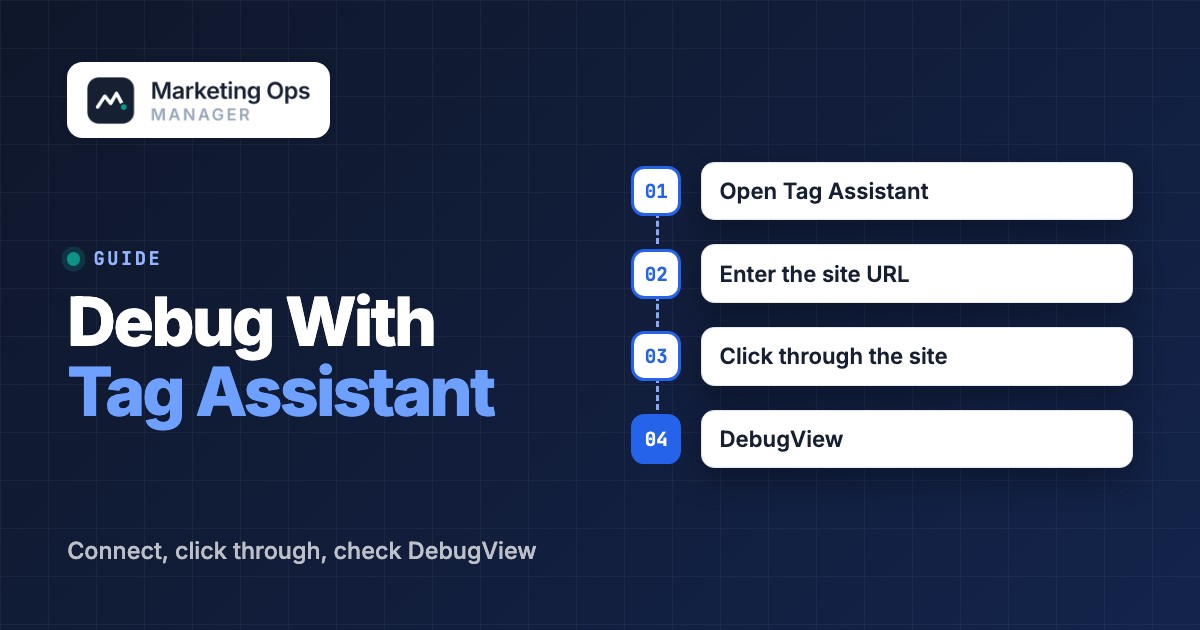
Open Tag Assistant
Go to tagassistant.google.com and click Add domain.
Enter the site URL
Type the address starting with
https://orhttp://, then click Connect.Click through the site
Your site opens with the debugger attached. Walk through the pages and actions you want to check, such as a form submission or a purchase. Tag Assistant records what fires as you go.
Stop or resume
Click Stop Debugging or the X in the upper left corner of the debug window to disconnect. To continue later, pick the domain under Active Domains or History on the Tag Assistant homepage.
From the extension, click the extension icon and then Troubleshoot tag. That opens tagassistant.google.com in a new tab and starts a session on the page you were viewing.
When the Google tag is present, Tag Assistant also adds tagged and untagged pages to a Tag coverage summary, which helps when you suspect a template or a subdomain never got the tag. It also reports ad_storage consent states, including when they were set relative to the consent being established.
How do you use GTM Preview mode?#
GTM Preview mode is the same debugger started from inside Google Tag Manager, so you can test unpublished changes before they go live. Google's Tag Manager Help describes the sequence.
Open the workspace
In your container, go to the Workspace tab and click Preview in the top right. Tag Assistant opens in a new tab.
Enter the URL
Type the address of the page that should run your container. If the site or page breaks, uncheck Include debug signal in the URL.
Connect
Click Connect, then return to the Tag Assistant tab and click Continue.
Confirm the connection
A successful connection shows Connected in the bottom right of the previewed site. The debug interface then updates as you click through the page.
Google says the debug interface shows how your tags fired, what triggered them and what data they process. To preview an older container version, open Versions, choose More Actions for that version and select Preview. Server containers use different tabs, and mobile app and AMP containers don't support the debug interface.
Here are two habits that'll save time. Preview only works in the browser where you've enabled it, so open the site from the Preview tab rather than a fresh window. And leave the debug session by clicking the X in the upper left corner of the debug interface or Stop debugging on the Tag Assistant activation page, so you don't test against a stale session the next day.
Why can't Tag Assistant find your tag or connect?#
Most failed connections come from the page, the browser or a blocked script, not from Tag Assistant itself, so there's usually a quick fix. Google lists the checks below, and the table puts them in roughly the order worth trying.
| Symptom | Likely cause | First fix |
|---|---|---|
| Cannot connect to a page | The page doesn't contain the Google tag | Try another page that should have it |
| Site breaks when Tag Assistant connects | The debug signal in the URL clashes with the page | Turn off Include debug signal in the URL |
| Connection fails, then the tag loads late | The tag loaded after Tag Assistant tried to connect | Click Retry |
| Tag never appears | Ad blocker or another extension is blocking it | Disable them and reconnect |
| Tag loads but nothing fires | Consent settings stop the tag | Check your consent management tool and Google's consent API settings |
| Intermittent or no connection | Multiple redirects, a firewall, a proxy or a content security policy (CSP) blocks the tag | Test the final URL directly and review CSP rules |
| Tags in an iframe are invisible | The extension is missing | Install the Chrome extension |
If you used the old Legacy extension, you'll probably remember its toolbar icon colors. Google's older help page defines them as grey with an x for no code found, green for a valid tag, blue for suggestions, yellow for minor implementation issues and red for critical ones. The current tool works from a debug session instead of an icon, so don't expect those colors.
How do you check that a conversion reaches Google Analytics?#
Tag Assistant shows what your browser sent, and GA4 DebugView shows what Analytics received. They aren't interchangeable. You'll need both to call a conversion verified, because a tag can fire and still be dropped on the way.
Google's Analytics Help explains that starting a session in Tag Assistant or GTM preview adds a parameter to your site's URL that turns on debug mode for your own device. Then you'll open Admin and choose DebugView under Data display. It shows:
- a seconds stream of events logged in the last 60 seconds, newest first, where clicking an event shows its parameters
- a minutes stream with one circle per minute for the last 30 minutes
- Top Events and Current User Properties for the selected device
- a device selector, so several people can test at the same time
To log events from every visitor instead of just your device, add debug_mode: true to the config call in gtag.js, or set the debug mode option on the Google tag in GTM. Remove the parameter to switch it off; you'll want to do that after testing. Setting it to false doesn't disable debug mode, Google warns, and that's an easy trap.
DebugView has limits that explain many "it fired but I see nothing" cases. Events won't appear if you use client-side privacy controls, or if you use consent mode and the user hasn't consented to Analytics cookies. DebugView also performs only limited attribution analysis, so check source and medium in the Acquisition reports. Debug traffic can distort your reports, so you'll want to filter out developer traffic once testing is done. If your links carry campaign tags, our guide to UTM parameters explains how those values should look.
What other tools help when Tag Assistant is not enough?#
Tag Assistant covers Google tags and it's very good at that. For other pixels, data layer pushes and consent behavior, Analytics Mania's July 2026 roundup of GTM extensions describes several free helpers. Use them next to Tag Assistant, not instead of it. They won't replace it.
| Tool | What it does | Use it when |
|---|---|---|
| dataLayer Inspector+ (Adswerve) | Tracks data sent to the data layer and diagnoses common issues | An event fires but its values are empty |
| Google Analytics Debugger | Logs data sent to Google Analytics in the browser console, including errors and warnings | You want a console trail of what was sent |
| Omnibug | Decodes and shows outgoing requests from analytics and marketing tools | Non-Google pixels are part of the setup |
| Consent Mode Monitor | Checks whether tags fire with the correct consent settings | Tags behave differently for consenting users |
| Redirect Path | Shows redirects between pages | Campaign parameters vanish between click and landing page |
| Stape GTM Helper | Formats JSON in GTM Preview | You debug server-side tagging |
The roundup also notes that Tag Assistant's own troubleshooting features look limited, which matches the gap above: it tells you what fired, not why a business outcome is missing. That's worth knowing before you promise anyone a clean audit.
A debug checklist you can reuse#
Let's make this routine: run the list in one session whenever you publish a container change or launch a campaign page. It'll take about ten minutes once you've done it twice.
- Tag Assistant shows Connected and the Google tag is present on the landing page
- The Tag coverage summary lists no untagged pages in the funnel you're testing
- The conversion event fires once per action, not twice
- The thank-you or confirmation step fires after the form submits, not on page load
- Event names and parameters match what the analytics team expects
- The same event appears in GA4 DebugView within about a minute
- Consent states behave as expected for both an accepting and a declining test user
- Campaign parameters survive redirects between the click and the landing page
- A test lead reaches the CRM with source and medium filled in
- Debug mode and any developer traffic are filtered out before the report is shared
What Tag Assistant can't tell you#
A debug session answers one very specific question "does this work right now, for me?" It can't tell you whether the tag still works next Thursday, on a page template someone edited, or after a CRM field was renamed. Tracking that was correct at launch breaks quietly, and the first sign is often a dip in pipeline, not an error message that'd tell you where to look.
That's the gap between a one-time debug and ongoing quality control. Teams who've felt this pain close it with a recurring checklist (our marketing operations audit checklist is one starting point) and by stating plainly who owns the stack, which our guide to what marketing operations is covers.
 The Marketing Ops Manager runs those checks on a schedule. It monitors landing pages, tracking, forms, CRM connections and sales handoffs, opens an incident with evidence when a step fails, and works in Claude, ChatGPT or any MCP client. It's read-only by default and every write needs human approval. Signup is invite-only right now, so there's an access code step.
FAQ#
Is Google Tag Assistant free?
Yes, it's free. Tag Assistant is a free Google tool at tagassistant.google.com, and the Chrome extension is also free. You need a Google tag or a GTM container on the page to have anything to debug.
Do I need the Chrome extension to use Tag Assistant?
No, but Google recommends it. Without it you can still connect from tagassistant.google.com, but tags loaded inside an iframe can only be debugged with the extension installed, and so can pop-ups and new tabs opened from the page.
What is the difference between Tag Assistant and GTM Preview mode?
Preview mode is how you start Tag Assistant from inside a Tag Manager workspace to test unpublished container changes. Tag Assistant by itself connects to a live site through Add domain. Both use the same debugging interface.
Why does Tag Assistant say it can't connect to my site?
The usual causes aren't exotic: a page without the Google tag, an ad blocker or extension, a consent tool that blocks the tag, or redirects, a proxy or a content security policy. Try another page, disable blockers, click Retry and, if the page breaks, turn off Include debug signal in the URL.
Is Tag Assistant Legacy still available?
Google merged Tag Assistant Legacy and Tag Assistant Companion into one Chrome extension, so you should use the current Tag Assistant extension instead of the legacy icon-based tool.
How do I see whether Google Analytics received my event?
Start a Tag Assistant or GTM Preview session on your device, then open Admin, then DebugView in Google Analytics. Events from your debug device appear in the seconds stream within a minute, unless consent mode or privacy controls block them.